Mobile data not working abroad? 9 steps that fix it
Most of the time data “doesn't work” abroad because of one or two phone settings, not the carrier. Go through these steps in order — nine times out of ten you're online by step three or four.

1. Check which line handles mobile data
With two SIMs, or a SIM plus an eSIM, data goes through only one of them. iPhone: Settings → Mobile (Cellular) Data → Mobile Data — pick the line. Android: Settings → Connections (or Network & internet) → SIM manager → Mobile data. For a travel eSIM, choose the eSIM.
2. Turn on data roaming for that line
For a travel eSIM every country is roaming, so without this switch there's no data. Turn it on only for the eSIM: keep data roaming off for your home SIM so you don't get a bill. A travel eSIM doesn't charge for roaming — it's already in the price.
3. Restart the connection
Switch airplane mode on for 15–20 seconds and off again. If that doesn't help, restart the phone. After a long flight a phone sometimes clings to the last network, and a restart makes it look for a new one.

4. Pick the network manually
Turn off automatic network selection and look at the list of operators. If the phone joined a network your SIM has no agreement with, there's no data. If you're not sure which network to pick, ask your SIM provider's support for the partner networks in that country.
5. Check the APN
Most phones set the APN automatically, but some Android phones don't. Open mobile network settings → Access Point Names (APN) and make sure there's an entry with the name from your SIM or eSIM instructions. If not, add it manually.
6. Make sure the plan is active
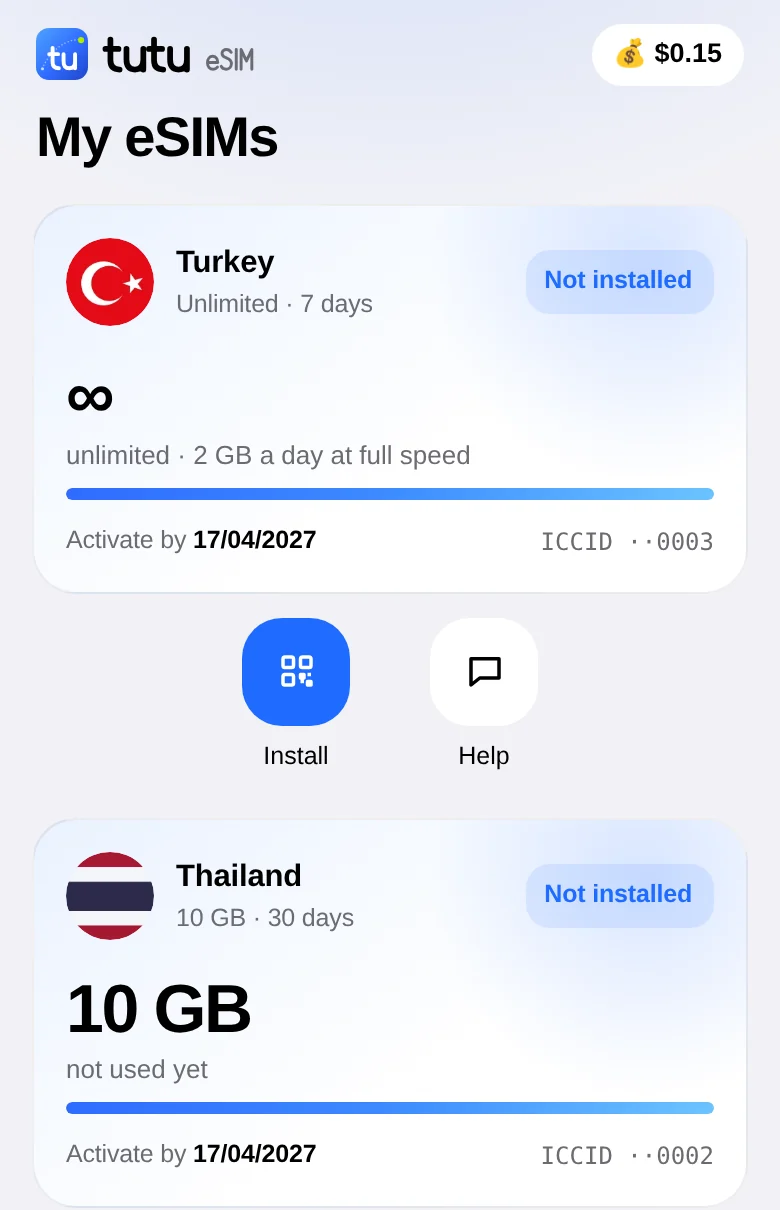
Check that the plan hasn't run out of days or data and that the country you're in is covered. At Tutu eSIM the remaining data is shown under “My eSIMs” in the bot or app, and you get a reminder when the gigabytes run low.
7. Turn off VPN and data saver
A VPN, Low Data Mode on iPhone or Data Saver on Android can block background connections and make it look like there's no internet. Turn them off for a minute and try again.
8. Check the phone isn't carrier-locked
Phones bought on contract (especially in the US) can be locked to the carrier's SIM, and then no other SIM or eSIM works at all. On iPhone check Settings → General → About → Carrier Lock: it should say “No SIM restrictions”.
9. Contact support
If nothing helps, write to your carrier's or SIM provider's support with your order number and a screenshot of the settings — it gets solved faster. Tutu eSIM support answers in Telegram every day.
And to avoid spending the first hours of your trip in settings, install a travel eSIM at home — step by step in the installation guide. Plans for Turkey, Egypt and all of Europe start at $2.99.
Need data on your trip?
An eSIM for 193 countries in a minute — no roaming, no paperwork.
Pick a countryPopular destinations




More articles

A plain explanation: what an eSIM is, how it differs from a regular SIM, which phones support it and how to get a travel eSIM in a minute.
2 min read · Read →
We compare your carrier's roaming with a travel eSIM: prices, convenience, calls and data. When roaming is fine and when an eSIM saves money.
2 min read · Read →
Mobile data in Turkey without roaming: how much data you need for a week, plans and unlimited, prices and how to install the eSIM before you fly.
2 min read · Read →
Which apps to install before a trip to Turkey: BiTaksi, Uber, iTaksi, İstanbulkart, Moovit, offline translation and food delivery — and how to have data for them from the first minute.
2 min read · Read →
A step-by-step guide for iPhone and Android: how to save a city map in Google Maps, what works without internet and what doesn't, and when Organic Maps or Maps.me is the better choice.
2 min read · Read →
Pay for a travel eSIM with USDT, TON, BTC or ETH through @CryptoBot — on the website or right in Telegram. How it works, what it costs, and what happens if something goes wrong.
2 min read · Read →